Things I can’t remember – Git

In git you clone a project—not checkout like in Subversion. You’ll probably want to put it in a directory that has a name that is the same as the project (or related to the project name).


$ git clone git://github.com/hubuser/importantProject.git importantProject

If you are hosting your own git server, you’ll probably use something like this.


$ git clone username@yourdomain.com:/www/importantProject/ importantProject

Once you’ve cloned the repository you’ll have the exact same files and file structure as the original. You’ll also be in the master branch.


$ git status
On branch master
Your branch is up-to-date with 'origin/master'.

nothing to commit, working directory clean

You’ll also get a .git directory with the following files.


$ cd .git
total 28
-rw-r--r--   1 username  staff    23B Jun  2 09:31 HEAD
drwxr-xr-x   2 username  staff    68B Jun  2 09:31 branches/
-rw-r--r--   1 username  staff   312B Jun  2 09:31 config
-rw-r--r--   1 username  staff    73B Jun  2 09:31 description
drwxr-xr-x  11 username  staff   374B Jun  2 09:31 hooks/
-rw-r--r--   1 username  staff   8.8K Jun  2 09:34 index
drwxr-xr-x   3 username  staff   102B Jun  2 09:31 info/
drwxr-xr-x   4 username  staff   136B Jun  2 09:31 logs/
drwxr-xr-x   4 username  staff   136B Jun  2 09:31 objects/
-rw-r--r--   1 username  staff   107B Jun  2 09:31 packed-refs
drwxr-xr-x   5 username  staff   170B Jun  2 09:31 refs/

Now suppose I modify my robots.txt file.


$ git status
On branch master
Your branch is up-to-date with 'origin/master'.

Changes not staged for commit:
  (use "git add <file>..." to update what will be committed)
  (use "git checkout -- <file>..." to discard changes in working directory)

  modified:   robots.txt

no changes added to commit (use "git add" and/or "git commit -a")


$ git diff
diff --git a/robots.txt b/robots.txt
index 90098a4..3aa5532 100755
--- a/robots.txt
+++ b/robots.txt
@@ -1,3 +1,5 @@
 # robots.txt for http://www.rememo.info/

 User-agent: *
+Disallow: /order/
+

Before we commit the file, we need to stage it. The status command above tells you how to to it.


$ git add robots.txt

We can see the staged changes with:


$ git diff --staged
diff --git a/robots.txt b/robots.txt
index 3aa5532..abd2889 100755
--- a/robots.txt
+++ b/robots.txt
@@ -3,3 +3,4 @@
 User-agent: *
+Disallow: /order/


Now $git diff returns nothing because there are no unstaged changes.

We can add and commit it in one command.


git commit -a
[master 4623ad2] Added a disallow
 1 file changed, 2 insertions(+)

Alternatively, you can combine the commit with the message.


git commit -a -m "Added a disallow"
[master 4623ad2] Added a disallow
 1 file changed, 2 insertions(+)

You can remove files from the repository by deleting them from your work area. They will show up in the unstaged area or you git status output. You can also use git rm to remove a file.

Likewise you can rename a file with mv originalName newName and git will notice. Or you can use git mv originalName newName.

You can view the commits that you have made with git log.


$ git log
commit 4623ad2cbe4163e2d013c7e53728023e4d7163e6
Author: User Name < username@WellGolly.com >
Date:   Tue Jun 3 07:55:00 2014 -0700

    Added a disallow

commit 065b7362f9ad19d6e2fe69cde9629abf0beabb95
Author: User Name < username@WellGolly.com >
Date:   Mon Feb 24 09:00:03 2014 -0800

    Changed site name and added blank line at end of files

commit 61277e4d12636044e9b873608c325470d98577e0
Author: User Name < username@WellGolly.com >
Date:   Mon Feb 24 07:50:56 2014 -0800

    Started tracking changes to site with git.

If you want to see the changes that were made as well, use the -p option (page option) and the output will be piped into a pager where you can page through all the changes. Hit ‘q’ to quit the pager.

You can browse the commit messages with the –pretty option.


$git log --pretty=oneline
4623ad2cbe4163e2d013c7e53728023e4d7163e6 Added a disallow
065b7362f9ad19d6e2fe69cde9629abf0beabb95 Changed site name and added blank line at end of files
61277e4d12636044e9b873608c325470d98577e0 Started tracking changes to site with git.

Once you have identified the commit you want more info on you can display the info with git show and the first few digits of the hash. Usually five digits is enough to uniquely identify the commit, but you can use all of them if you want.


$ git show --format=raw 4623a
commit 4623ad2cbe4163e2d013c7e53728023e4d7163e6
tree 9c73a1afbfb9ec4930d3d4ac8d906e6ae4683df6
parent 065b7362f9ad19d6e2fe69cde9629abf0beabb95
author User Name <username@WellGolly.com> 1401807300 -0700
committer User Name <username@WellGolly.com> 1401807300 -0700

    Commit message

diff --git a/robots.txt b/robots.txt
index 90098a4..3aa5532 100755
--- a/robots.txt
+++ b/robots.txt
@@ -1,3 +1,5 @@
 # robots.txt for http://www.rememo.info/

 User-agent: *
+Disallow: /order/
+

Often you might be looking for the last time a particular file was changed. –name-only gives the name of the file, the commit message, and the hash.


$ git log --name-only
commit 4623ad2cbe4163e2d013c7e53728023e4d7163e6
Author: Gordon Miller <developer@well.golly>
Date:   Tue Jun 3 07:55:00 2014 -0700

    Added a disallow

robots.txt

commit 065b7362f9ad19d6e2fe69cde9629abf0beabb95
Author: jscarry <jscarry@learningfundamentals.com>
Date:   Mon Feb 24 09:00:03 2014 -0800

    Started tracking changes to site with git.

Reminder/README.txt
Reminder/Reminder.inc
:
SPF Record

Gmail has started bouncing my order confirmation emails so I need to start using some of the anti-spam indicators. One of them is an SPF record. Since I use Linode, there is a tab that lets me create the record. Deciding what to put in it is a bit complicated, but not too bad.

You can create a very simple SPF record or more detailed. I chose to get a little detailed in hopes that it would satisfy Google. You can find details of all the parameters at OpenSPF or Wikipedia.

The simplest record just says to allow all mail from the domain if there is a mail record in the DNS.


example.com  text = "v=spf1 mx ~all"

To see what an SPF record looks like, open the terminal and type the following


nslookup -type=txt Google.com

Your response should look like this:


google.com  text = "v=spf1 include:_spf.google.com ip4:216.73.93.70/31 ip4:216.73.93.72/31 ~all"

If you are using a Linode VPS, mail is sent using IPV6 so you also need an ip6 record. Linode itself uses MailChimp, so their SPF record is:


linode.com  text = "v=spf1 mx include:servers.mcsv.net ~all"

In my case, I set up my SPF record to include charter.net, since I also mail from the office and both my IPV4 and IPV6 address. In the Linode control panel, the data between the quotes is pasted into the form and Linode takes care of creating the record.

Removing items from NSMutableArray’s

I have an NSMutableArray in Objective-C that I want to remove items from so that it has just the number of items that will be displayed in a grid on the screen. The number of items varies, but on one screen it is 9. The array has more items, but I don’t necessarily know how many. [Remember that array items are numbered with an index starting at 0. So the last index number of my array of 9 items is 8′]

This is the original code that I tried.


NSUInteger itemsOnScreen = 9;
for (NSUInteger i = itemsOnScreen; i < gridItems.count; i++) {
    [gridItems removeObjectAtIndex:i];
}

This code doesn’t delete all of the items so I decided to start at the end and delete items until I there were only 9 left. This is the code that I ended up using.


NSUInteger itemsOnScreen = 9;

for (NSUInteger i = gridItems.count - 1; i > itemsOnScreen - 1; i--) {
    [gridItems removeObjectAtIndex:i];
}

It’s kind of ugly and after working with it it occurred to me why the original code didn’t work. As I started deleting items, the number of items, and hence the index of the last item changed. So it worked fine for the first few, but as I neared the end of the loop, there were no items with an index that matched i. If I just delete the first item after the 9 that I want, then the loop works fine.


NSUInteger itemsOnScreen = 9;
for (NSUInteger i = 0; i < gridItems.count; i++) {
    [gridItems removeObjectAtIndex:itemsOnScreen];
}

all mail servers must have a PTR record with a valid Reverse DNS entry

After we moved from our own server to Linode I started getting these bounce messages from Comcast. Reverse DNS just means that if you have an IP address you can find the domain associated with it. In my case I have lots of domains at the same IP address but use one for sending mail. I didn’t know what a PTR record is so I looked it up. Wikipedia says that “IPv4 uses the in-addr.arpa domain and the ip6.arpa domain is delegated for IPv6. The process of reverse resolving an IP address uses the pointer DNS record type (PTR record).”

On our old server we did our own DNS hosting and all of the info was contained in a file. So I knew about MX records, A records, etc. Linode uses a control panel to do the DNS setup so the setup is a bit different, but the same info is there. I had an A record for the domain that was sending the email, mail.machinename.com, and one for the domain that the email was coming from i.e. support@mycompany.com.

I checked with intoDNS to make sure that everything was set up correctly and I did in fact have a PTR record that pointed to the right place. “Your reverse (PTR) record: 192.168.255.173.in-addr.arpa -> mycompany.com”.

The clue came in a bounce from a different domain. The message said that the reverse DNS for 2500:34e80::f03c:92ee:fg70:ab93 was not found. It turns out that this is an IPv6 address. It appears that Linode is using an IPv6 address for the port I send mail from. To get a reverse DNS set up for that address I needed to set up an AAAA record in the Linode control panel, wait a while for it to propagate to Linode’s DNS servers, then set up reverse DNS for the IPv6 address.

I waited a day for the change to propagate and now my Comcast emails are going through fine.

UIImage Crash on iPod Touch

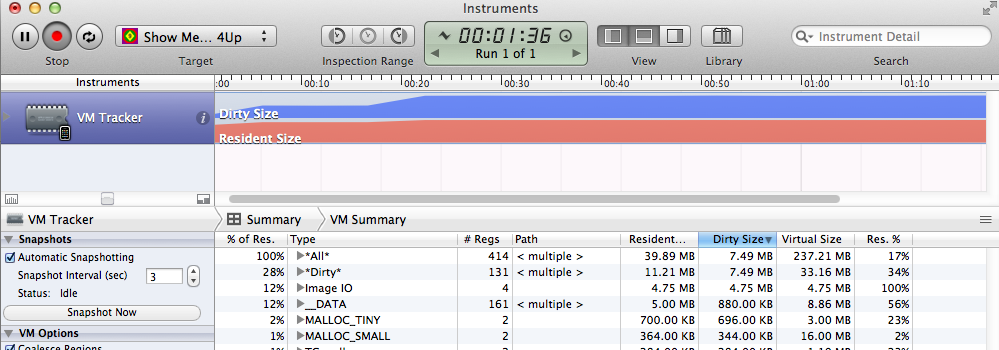
While testing my app on an iPod Touch I started getting an out of memory crash. It turns out that when using imageNamed: iOS keeps the picture around in case it is needed later. It is supposed to remove it from memory when it needs more memory, but it is slow to do so and causes the app to crash. I replaced it with imageWithContentsOfFile: and the crashes went away.

VM Tracker.png


/ Put the picture on the screen. Most will be jpegs
    //NSString *pictFileName = [NSString stringWithFormat:@"%@.jpg",pictName];
    NSString *pictFile = [[NSBundle mainBundle] pathForResource:pictName ofType:@"jpg"];
    if (  [PICT_TYPE isEqualToString:@"png"] ) {
        //pictFileName = [NSString stringWithFormat:@"%@.png",pictName];
        pictFile = [[NSBundle mainBundle] pathForResource:pictName ofType:@"png"];
    }
    
    //self.imageToDisplay  = [UIImage imageNamed:pictFileName];
    self.imageToDisplay = [UIImage imageWithContentsOfFile:pictFile];
    

From the documentation for imageNamed:,

This method looks in the system caches for an image object with the specified name and returns that object if it exists…
If you have an image file that will only be displayed once and wish to ensure that it does not get added to the system’s cache, you should instead create your image using imageWithContentsOfFile:. This will keep your single-use image out of the system image cache, potentially improving the memory use characteristics of your app.

So for all of my icons that remain on the screen, e.g. microphone, speaker, checkboxes, I use imageNamed:. They are small and reused so they belong in the cache. For the main image on the screen, which is large, there will most likely be lots of other images used before it is used again. The cache will be purged before the app gets around to using it again so there is no point to putting it there in the first place.